
How to post to Instagram from a Mac
Short answer
Open instagram.com in Safari or Chrome, click Create, then Post, then Select from computer, and pick photos or a video on your Mac. Click Next through the crop and edit screens, write a caption and click Share. A video posted this way is shared as a Reel, and one post can hold up to 20 photos and videos. The website can’t post Stories; for Stories and for scheduling from a Mac, use Meta Business Suite or Mellow Kitty.
Post a photo or a carousel
Instagram’s website works in any Mac browser, with any account. The steps from Instagram’s Help Center:
- Open instagram.com and sign in.
- Click Create in the menu on the left, then Post.
- Click Select from computer and choose a photo, or drag the file into the window. Instagram takes JPG, PNG and HEIC.
- For a carousel, click the media button in the bottom right, then Add, and add up to 20 photos and videos in all.
- Choose the size and click Next. Apply filters or adjustments and click Next again.
- Write the caption and, if you like, add a location or alternative text. Click Share.
A video inside a carousel stays part of the carousel. It isn’t a separate Reel.
Post a Reel
On the website a Reel starts the same way: Create › Post › Select from computer, then choose a video.
- Click Next. Choose the cover with the slider under Cover photo, or pick an image from your Mac with Select from computer.
- Trim the beginning or the end with the slider under Trim, and click Next.
- Write the caption, add a location, tag people or add alternative text, and click Share.
A Reel can be up to 20 minutes long. Instagram notes that Reels longer than 3 minutes aren’t recommended to new audiences, people who don’t follow you yet. So keep a Reel meant to find new viewers under 3 minutes.
What the website can’t do
- Stories. Instagram’s Help Center says sharing to your story isn’t available on computers, only in the app on phones and tablets. See How to post an Instagram Story from a computer.
- Scheduling. Instagram documents scheduling in its app: public accounts can schedule posts, Reels and carousels up to 30 days ahead. It doesn’t describe scheduling on the website.
Stories and scheduling from a Mac
Meta Business Suite is Meta’s free tool, in the browser at business.facebook.com. It posts to Instagram and schedules posts (up to 10 photos), Reels and Stories. It needs a professional account, Creator or Business, and no longer needs a Facebook Page: you can sign in with your Instagram account.
Mellow Kitty is a free Mac app. It publishes posts, carousels, Reels and Stories and schedules them, for up to 30 publications a month. It needs a professional account too.
- Download Mellow Kitty from the Mellow Kitty page and open it. It runs on macOS 12 or later, on Intel and Apple silicon, and is signed and notarised by Apple.
- Sign in to Mellow in its window, or create an account there. It is free for up to 30 Instagram publications a month, with no card.
- Connect Instagram from Profile. You approve access on Instagram’s own screen; Mellow never sees your password. The account has to be a professional one, Creator or Business: Instagram only allows publishing through its API for those.
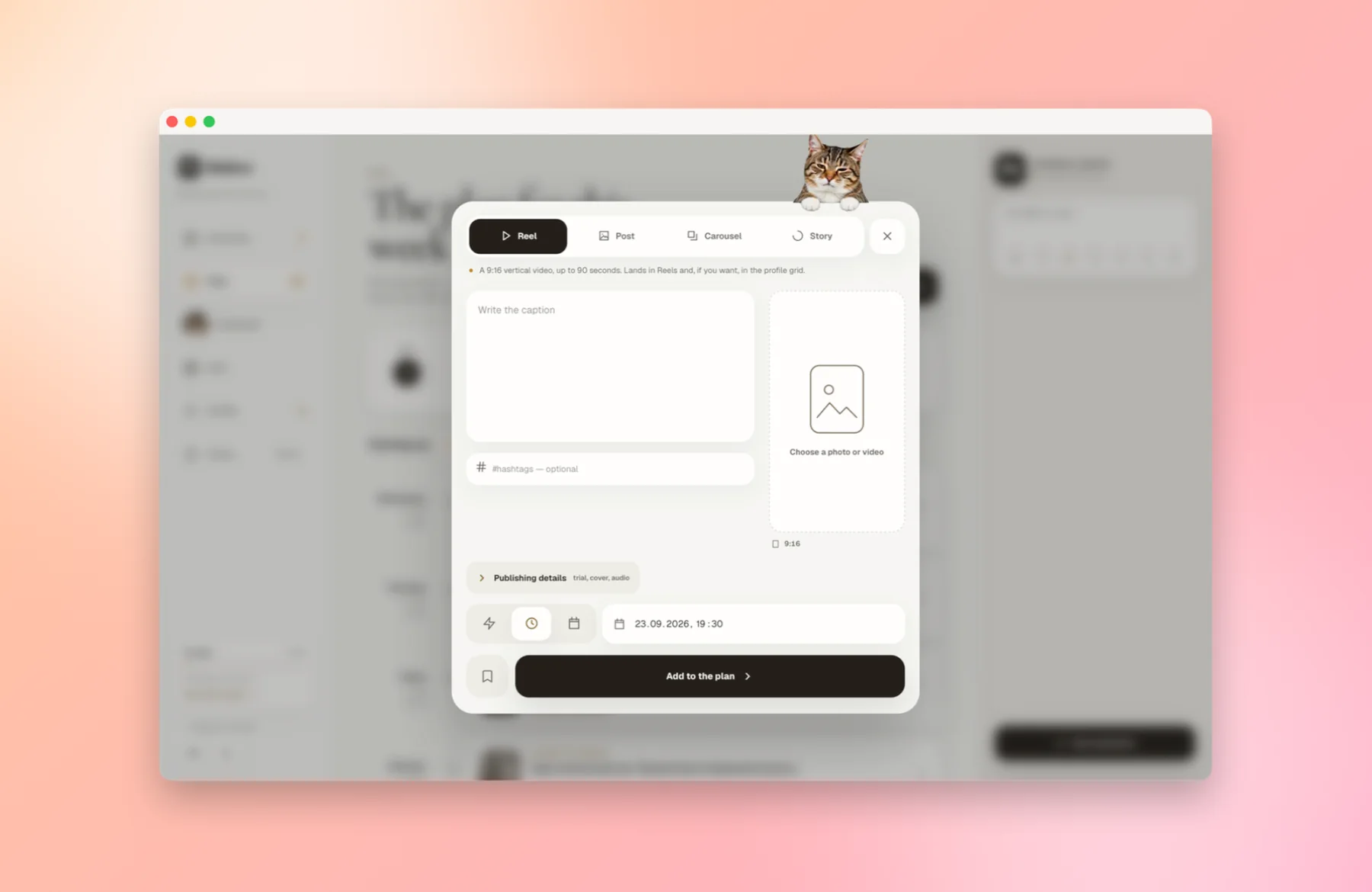
- Click New publication and choose Reel, Post, Carousel or Story. Pick the photo or video from your Mac and write the caption.
- Click Publish now, or set a date and time and click Add to the plan. Scheduling runs on Mellow’s servers, so your Mac can be asleep when the post goes out.
Mellow takes photos as JPG, PNG or WebP and turns them into JPEG before uploading; export iPhone HEIC photos as JPEG first. Videos go up as MP4 or MOV, up to 1 GB. Instagram’s API then sets the limits: a Reel of 3 seconds to 15 minutes, a Story video of up to 60 seconds, and 2 to 10 items in a carousel.
Mellow is for publishing and planning. It has no feed, no messages and no comments, on purpose; keep instagram.com for those. It can’t add interactive story stickers such as polls and links, or music from Instagram’s library: post from the Instagram app when you need those.
Questions people also ask
Why did my video become a Reel?
Instagram shares a video post as a Reel. A video inside a carousel stays part of the carousel instead.
How long can a Reel uploaded from a computer be?
Up to 20 minutes on instagram.com, the same as in the app, though Instagram doesn’t recommend Reels longer than 3 minutes to new audiences. Through Instagram’s API, which Mellow uses, a Reel can be 3 seconds to 15 minutes long.
Do I need a professional account to post from a Mac?
Not on instagram.com: any account can post photos, carousels and Reels from the browser. Tools that publish for you, such as Meta Business Suite and Mellow Kitty, need a professional account, because Instagram lets tools publish only to Creator and Business accounts.
Which photo formats does instagram.com accept?
JPG, PNG and HEIC (HEIF), according to Instagram’s Help Center.
Can I schedule a post on instagram.com?
Instagram documents scheduling in its app, not on the website. From a Mac you can schedule in Meta Business Suite in the browser, or in Mellow Kitty.
Sources
- Instagram Help Center: Post a photo on Instagram (computer)
- Instagram Help Center: Share a post with multiple photos or videos (computer)
- Instagram Help Center: Record a reel on Instagram (computer)
- Instagram Help Center: Share a photo or video to your Instagram story (computer)
- Instagram Help Center: How to create and manage scheduled posts and Reels
- Meta Business Help Center: creating and scheduling Instagram posts in Business Suite
- Meta Business Help Center: creating and scheduling reels in Business Suite
- Meta Business Help Center: Create and manage stories in Meta Business Suite
- Meta Business Help Center: using Business Suite with an Instagram professional account
- Meta Business Help Center: about Meta Business Suite
- Meta for Developers: IG User media reference (Reel and story limits)
- Meta for Developers: Instagram Platform overview (professional accounts)
Other companies’ features change. Every statement about them rests on these pages, as they read on the date above.