Create an Instagram or TikTok carousel, then turn it into a post
A practical guide to editable AI carousels: choose a format, bring your photos, shape the story, save each slide and send the result to your publishing draft.
By Mellow · UpdatedBuild a carousel for a beginner workshop
Our example brief is specific: explain what a first-time visitor should check before booking a cup-making workshop. The prepared example below uses three 4:5 slides and the label MELLOW · EXAMPLE. Its blue palette comes from an earlier template; current Studio chooses colors with your visual style. The copy avoids prices and collection promises that the brief has not supplied.
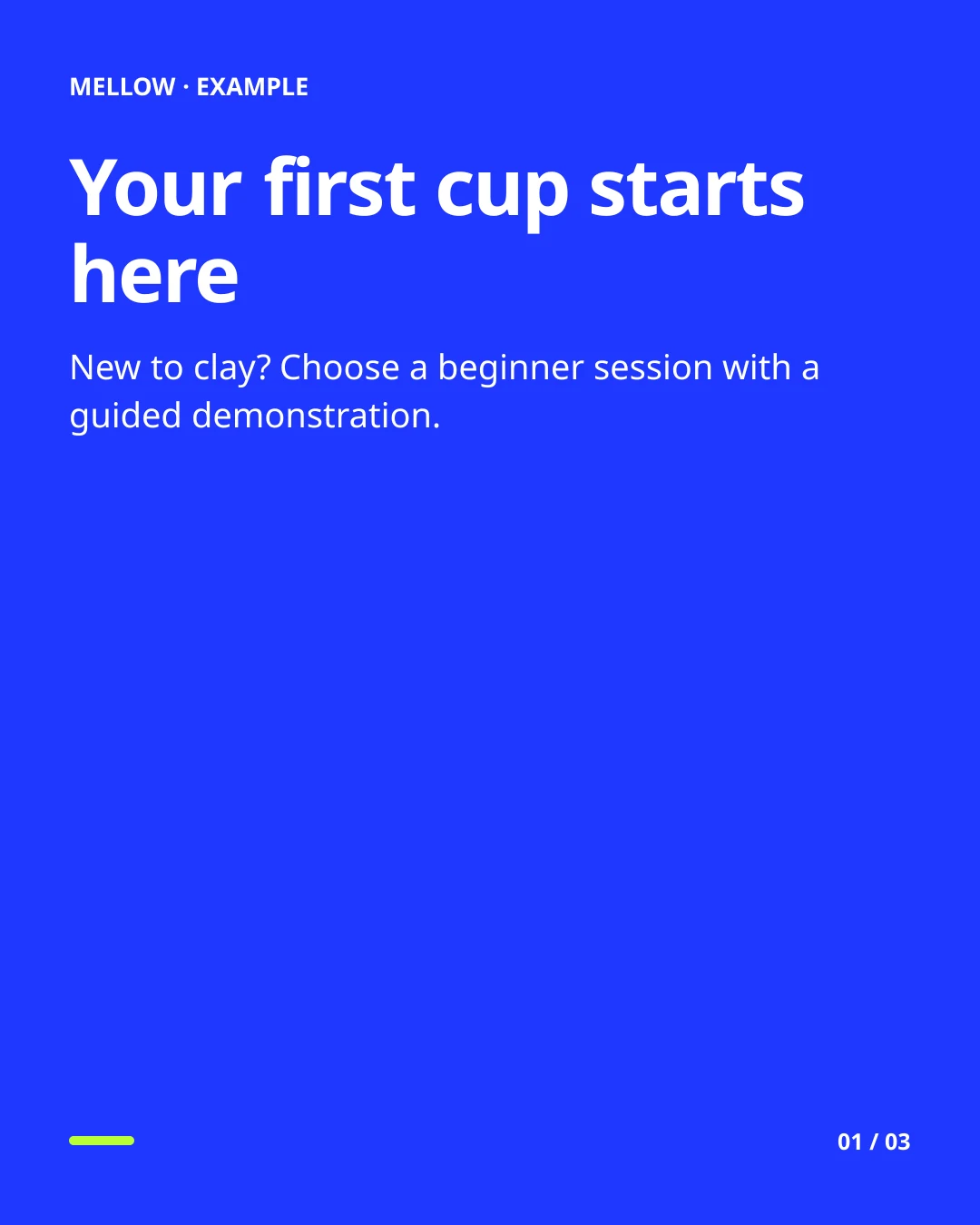
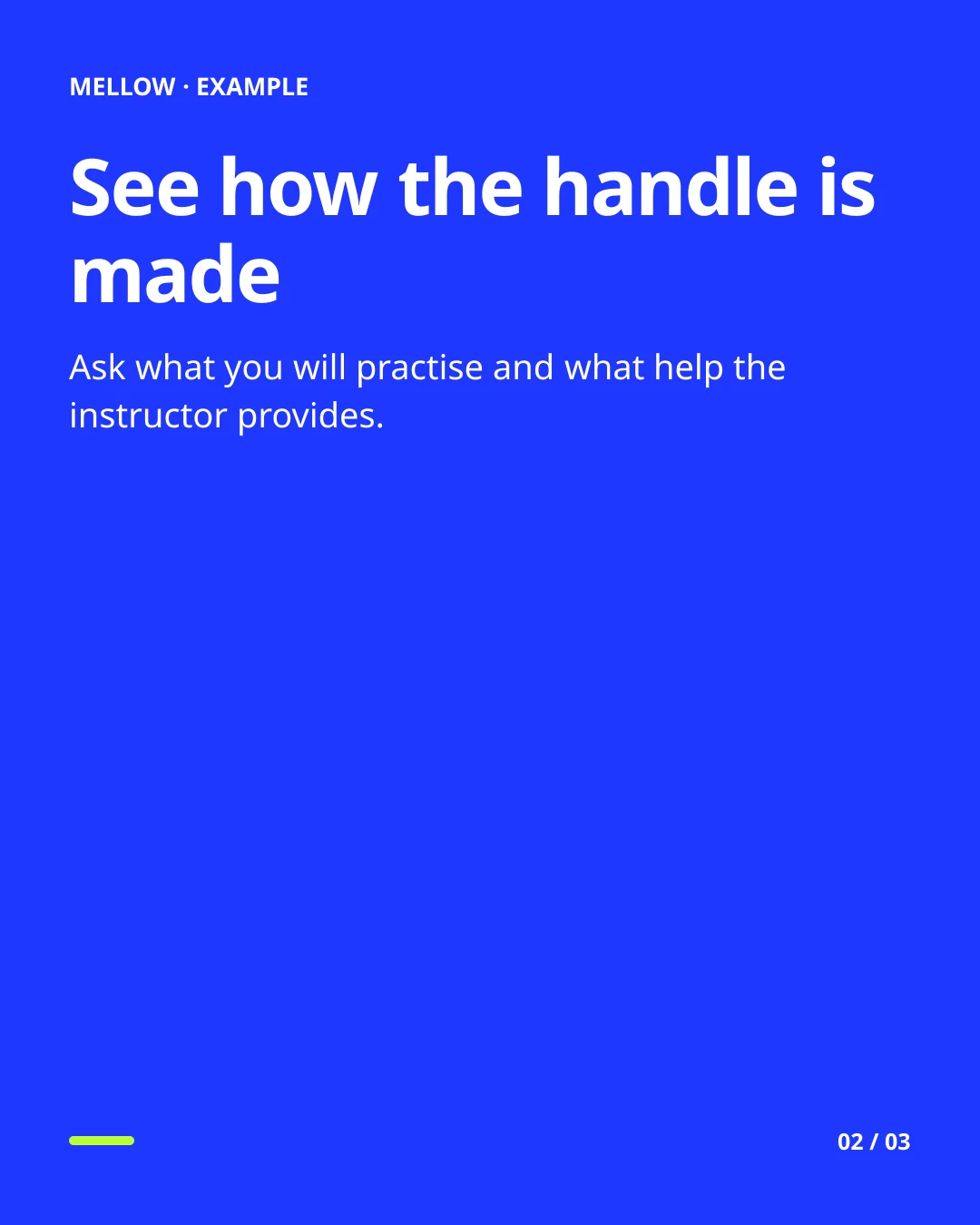
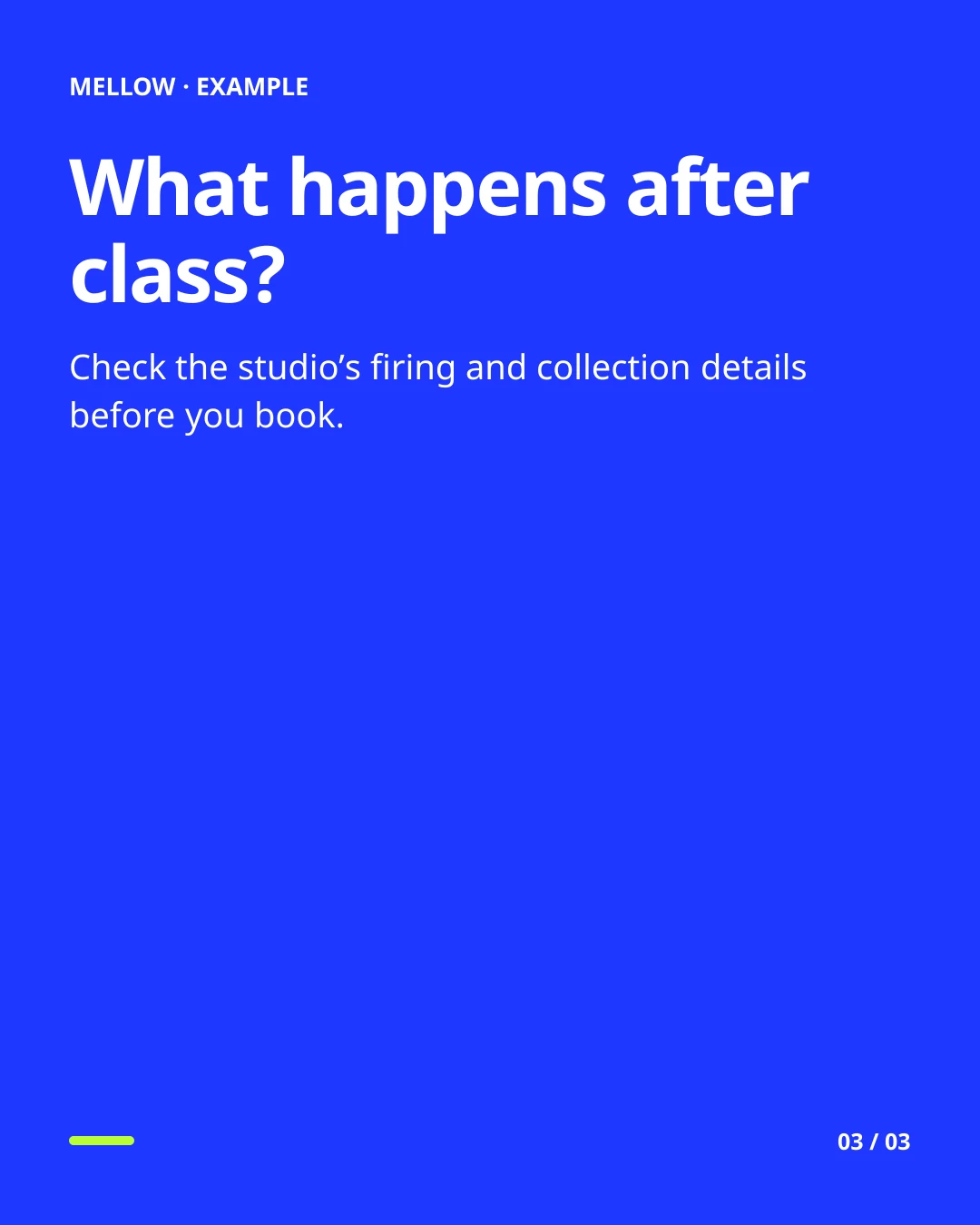
The first slide names the reader and subject. The second makes the class easier to picture. The third answers a decision someone needs to make before booking. Replace the example wording with your actual session details; these are prepared teaching examples, not customer posts.
Download the exact text and settings. This JSON is a reference, not an automatic importer. Use the wording as a brief, select a visual style and set three slides in Customize. The new design can differ from this older template.
If you have your own workshop photos, show the finished object, the action being taught and the real collection process. Each image should explain the adjacent text. The five-slide storyboard shows how to extend the same brief. Open Creative Studio.
One clear idea per slide
What the Studio’s designed carousels look like, what they cost and how an agent makes them is in the AI Instagram carousel generator guide; this one follows a single example from brief to post.
A useful carousel opens with a specific question or promise, develops one point at a time, and ends with a practical next step. Use a short headline, a readable type size and a consistent visual style. Five clear slides are more useful than ten repeated paragraphs. Check every claim before publishing: AI can suggest a structure, but it does not verify your business facts.
From brief to saved design
- Open Creative Studio and choose Carousels. Confirm the current profile first.
- Describe the idea in one prompt. AI infers the audience, story and language; include any details that matter.
- Pick a visual style card or leave Auto. Add a photo or reference if useful. Customize holds the slide count, format and optional overrides.
- Create the carousel and inspect every slide. Edit its text, then use Redesign slide to update words embedded in AI artwork. Text & layout creates separately editable text instead.
- Save a post draft, schedule it or download the slides from the result. Choose destination accounts and review the content before publishing.
Saved projects stay in the profile where you created them. AI jobs continue if you leave the tab; reopening Studio shows their current status. Wait for the generation result, then inspect the text, image order and any edits before exporting.
Your photos or generated illustrations
Your photos are useful for products, examples and a recognizable brand. A reference helps describe composition or identity. For a missing illustration, use the AI image action on that slide. Editable text is rendered separately from an illustration so spelling and layout can still be corrected. Thumbnails can use a fully generated image, with a short headline requested in the brief.
Use images you have permission to publish. Keep essential text away from the outer edges and platform controls. Download the ordered ZIP if you need to inspect the actual image files or publish elsewhere.
Generate a whole carousel or bring your photos
Choose AI design for a finished, art-directed image on every slide — in one of twelve styles picked for your topic, or in the look of a post you upload as a reference — Your photos for AI-written text around uploaded images, or Text & layout to add images later. Start with a guide, a behind-the-scenes story or a product introduction. An optional brief adds your audience, takeaway and next step; brand name, colors, language and visual direction make it yours.
With AI design the words are set inside each slide, and the whole set shares one design system; change a slide’s words and redesign it in the same style. With your photos or text, the story uses varied, editable layouts: photo first, text with a photo, side by side and a final takeaway. Edit the words and each slide’s layout before export. Generation continues if you leave. If it fails, completed material remains available and the reserved credits are returned; a new generation needs a new explicit action.
What uses credits?
An AI-designed carousel costs 2 credits for its story plus 10 per designed slide: 32 for three slides, or 52 for five. The total appears before you start. A text/layout carousel, including one using your own photos, costs 2 credits. Redesigning one slide, a cover or an illustration uses 10. Captions, hashtags and the assistant use no credits: AI writing is included in every plan. Manual edits, reordering, template rendering and downloads are free. The credit balance is shared across your profiles; images and projects stay separate. Failed generations return their reserved credits, and retrying the same request does not charge twice.
See the current included amounts and optional credit packs. An annual subscription gives monthly allowances. Included credits reset monthly; purchased credits do not expire.
Instagram and TikTok still have different rules
A saved design is a set of images, not a guarantee that every connected account accepts the same post type. Instagram needs an eligible professional account for API publishing. TikTok’s supported media and account permissions depend on the connection mode. The composer validates the selected destinations; remove an incompatible destination or make a separate version. A YouTube channel needs a video, not a carousel image set.
Use it through MCP
Call studio_list for the balance and saved projects, studio_quote for the generation cost, and studio_generate with an idempotency key and an explicit credit ceiling. Poll studio_job, edit with studio_save, then use studio_export to obtain media for validate_post. Generation requires posts:write and the separate ai:generate permission. Export requires posts:write and media:write. An existing publishing key does not automatically gain spending rights.
Full API and MCP documentation · YouTube videos and thumbnails