Publish a YouTube video with its thumbnail from Mellow Hub
Upload a landscape video or a Short to YouTube from Mellow Hub with its title and a custom thumbnail made in Creative Studio or your own.
By Mellow · UpdatedMatch the thumbnail to what the video actually teaches
For a video showing a beginner cup-making session, a useful title is: Your first pottery workshop: shaping a cup and adding a handle. The thumbnail can use the shorter phrase Your first cup. It identifies the subject without trying to fit the whole explanation into a thumbnail.
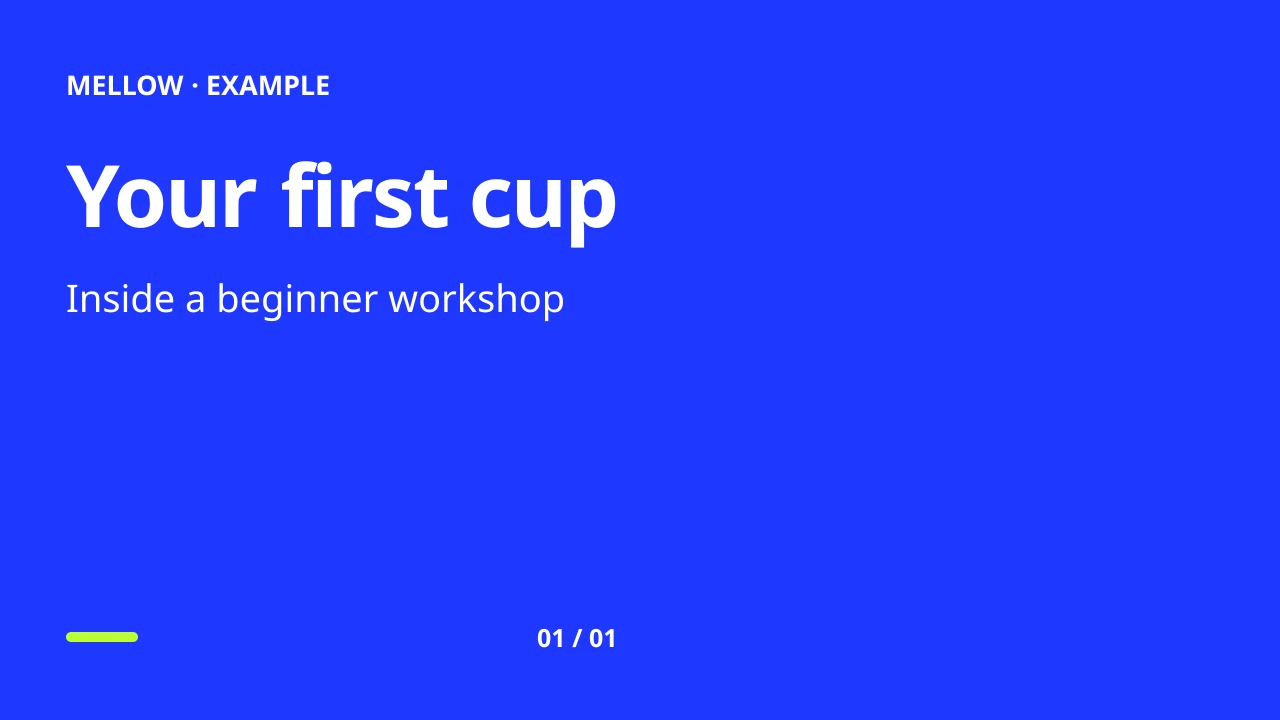
In Creative Studio, open Thumbnails, choose New thumbnail and describe the subject, composition and headline in one sentence, with the headline in quotation marks. For example: a beginner pottery workshop, hands shaping a cup, warm daylight, headline “YOUR FIRST CUP”. Choose 16:9 for YouTube. The blue image above is a prepared example from an earlier template, not a palette you need to select. Every way to make one — from a sentence, with your own face, by changing one thing, by the free review’s fixes — is in the AI YouTube thumbnail generator guide.
If the video teaches one specific technique, name that technique instead. A broad workshop thumbnail on an unrelated demonstration sets the wrong expectation. With your own photograph, choose a frame that clearly shows the action; compare it with the crop example.
Download this example thumbnail · Download the text and settings · Open Creative Studio. You still need a finished video and an eligible YouTube account.
Hub accepts landscape video
Hub’s YouTube publishing flow accepts one video and a title. It does not require portrait orientation or convert every video into a Short. A normal 16:9 video can use the same publishing workflow. YouTube decides the final classification and processing result.
For standard channels, YouTube classifies newly uploaded square or vertical videos up to three minutes as Shorts. Its guidance recommends a wider format such as 16:9 when you want long-form classification. See YouTube’s current Shorts rules. Duration alone does not make a landscape video a Short.
Prepare the video post
- Connect the intended YouTube channel in the correct Hub profile.
- Create a post and select that channel. Add one video, not an image carousel.
- Enter the YouTube title, up to 100 characters, and a description. Confirm any privacy and audience settings offered by your connection.
- Validate the post, then review the publication or schedule.
- Check the destination result and its YouTube link. A queued or processing response is not a completed upload.
The platform and publishing provider still control upload limits, account eligibility, processing and API access. YouTube’s direct API documents video uploads through videos.insert; Hub uses its configured publishing adapter, so the direct API’s maximum file size is not a promise that a browser upload through Hub accepts that size.
Make a thumbnail without replacing the video
In Creative Studio → Thumbnails, choose 16:9 for a YouTube thumbnail or a vertical format for a different placement. Describe the subject and composition, add your own photo or reference if useful, and generate a thumbnail. You can explore a saved example through Try an example. The exported design remains available in that profile.
Use as thumbnail attaches the image to the composer’s video thumbnail field. It keeps the video already in your draft. Sending a thumbnail image alone does not create a YouTube video. Custom thumbnails still depend on the channel’s eligibility and the destination’s support; see YouTube’s thumbnail API requirements.
Make separate compositions when the formats differ
A wide YouTube thumbnail and a tall TikTok or Instagram thumbnail have different space for a face, headline and subject. Generate or edit a separate version instead of relying on a crop that cuts off the main element. Keep the original video’s orientation unless you intentionally prepare another video edit. Studio creates images; it does not re-edit a landscape video into a vertical one.