Instagram grid planner: preview your grid, then post it in order
Plan your Instagram feed in a free tool that draws the 3:4 profile grid, then post a 3x3 grid in order: by hand, in Instagram’s app, or scheduled.
By Mellow · UpdatedHow do you plan an Instagram grid and post it in order?
To plan an Instagram grid, the feed people see on your profile, lay your next posts out 3 across in the 3:4 rectangles the profile shows, then post them in reverse: the one meant for the bottom right goes up first, the one meant for the top left goes up last. Mellow Hub’s free grid planner draws that grid in your browser from up to 18 pictures, numbers them in posting order and hands your own files back named 01-of-09.jpg, 02 and so on. Nothing is uploaded and it needs no account. Posting is a separate job, because a grid is never one post: a 3x3 grid is 9 posts. Instagram’s app posts or schedules each of them, free. From a computer, Mellow Hub’s composer schedules each tile as its own post, to the minute, and its Calendar lists them in order before they go out. Hub has no button that posts a whole grid from one upload.
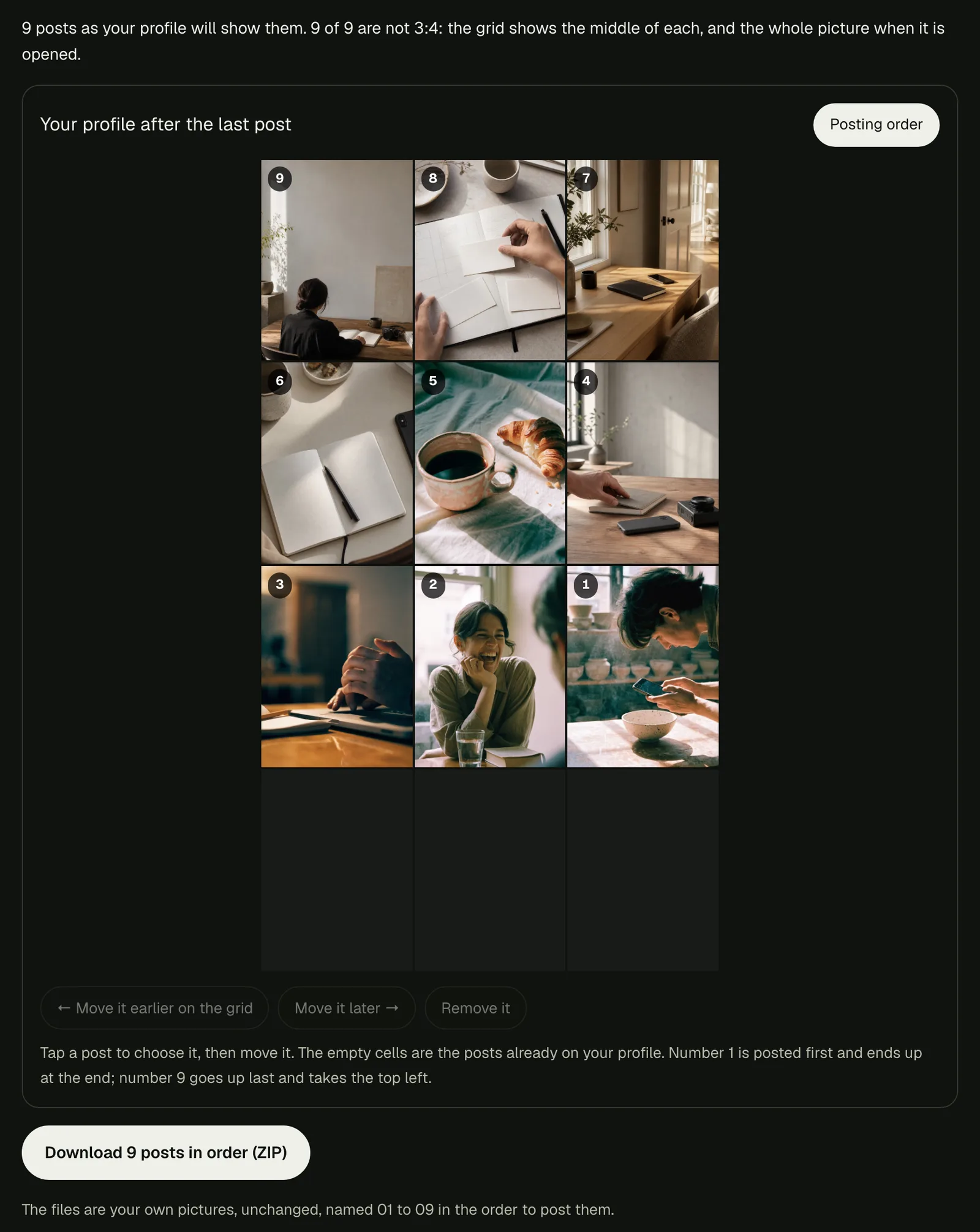
What the profile grid shows
- 3 to a row, each a 3:4 rectangle cut from the middle of the post. Instagram’s Help Center gives no figure for it. On Instagram’s own profile every tile, post or reel, measured 311 × 414 pixels in a desktop browser on 24 November 2026, and Adam Mosseri, who heads Instagram, announced the tall grid in January 2025.
- Newest first. Instagram’s page about tagged posts says the grid is in reverse chronological order by default, unless you have reordered it. That is why a planned grid is posted from its end.
- Pinned posts come before everything. You can pin up to 3 posts to the top of the profile, so a planned row starts after them.
- Reels and carousels take a cell too. On Instagram’s own profile reels and photo posts share the one grid, and a carousel shows its first photo or video.
- The grid can be reordered afterwards, in the app. Instagram’s Help Center gives the steps: on your grid, tap and hold a post, tap Reorder grid, then drag. Its computer page says the feature is not available there.
| Shape of the post | Pixels | Hidden on the grid | Where it can be posted from |
|---|---|---|---|
| 3:4 | 1080 × 1440 | Nothing: it is the grid’s own shape | The Instagram app |
| 4:5 | 1080 × 1350 | 3.1% on each side | The app, or a scheduler |
| 1:1 | 1080 × 1080 | 12.5% on each side | The app, or a scheduler |
| 9:16, a reel’s cover | — | 12.5% at the top and at the bottom | The app, or a scheduler |
The hidden strips are arithmetic from the 3:4 cell. The shapes are Instagram’s: its app keeps photos between 1.91:1 and 3:4 (Help Center), and its API, which every scheduler posts through, takes photos from 4:5 to 1.91:1 (Meta for Developers). Both pages were read on 24 November 2026.
Plan the grid, then schedule it: step by step
- Open the free grid planner and choose the pictures of your next posts, up to 18: photos, or the covers of reels. They stay in the page; nothing is uploaded.
- Tap a post to choose it, then move it earlier or later until the rows read well together. The empty cells under your pictures stand for the posts already on your profile.
- Read the numbers on the pictures. Number 1 is posted first and ends up last on the grid; the highest number goes up last and takes the top left.
- Press the download button under the grid; for 9 posts it reads Download 9 posts in order (ZIP). Your own files come back unchanged, named in the order to post them: 01-of-09.jpg first, 09-of-09.jpg last.
- If you are going to schedule the posts, check the files first: Instagram’s API takes JPEG photos from 4:5 to 1.91:1, and Hub does not open the file. Save a PNG as a JPG; crop a 3:4 picture to 4:5, or post it from the Instagram app.
- In Mellow Hub open Create a post. A fresh composer has every account ticked and Instagram on Reels, so tick only your Instagram account and choose Feed on the Instagram card. Add the first file only. One picture is one post: two or more would go out as one carousel.
- Choose Later, set the date and the time, and press Schedule. The composer answers: Post scheduled.
- For the second file, the third and the rest: after Schedule the composer keeps the caption and the picture, so press Remove media to take the old picture off, add the next file, then change the caption and the time. Each is a new post, at a time a few minutes after the one before it.
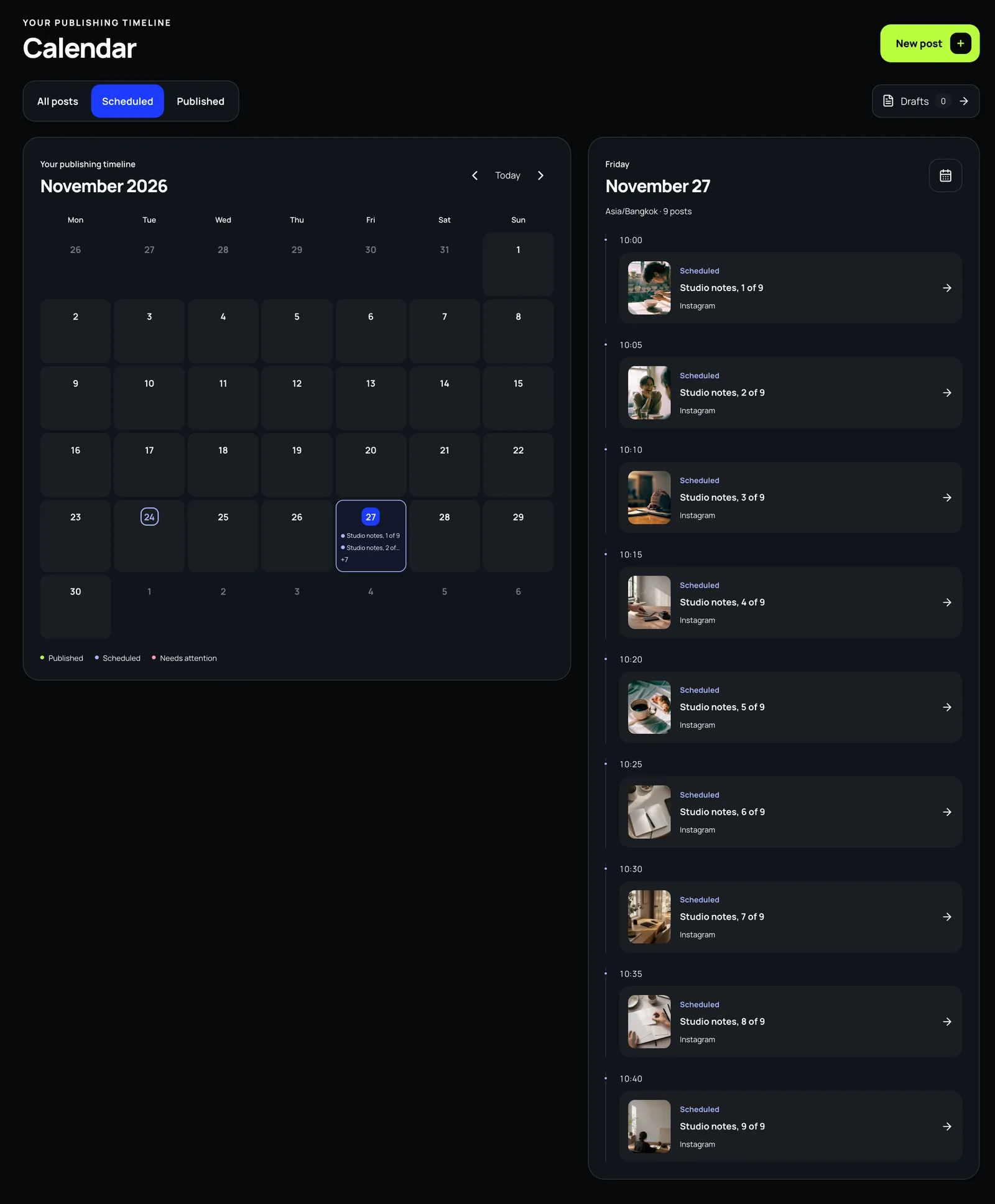
- Open the Calendar on that day and choose Scheduled. The posts are listed by time, each with its picture: read them top to bottom against the planner’s numbers, and open one to change its time or cancel it.
- After the last one is out, look at your profile. If a post sits in the wrong place, Reorder grid in the Instagram app moves it.
Steps 1 to 4 need no account and are the whole job if you post from your phone, where the same button saves the pictures through the share sheet. Steps 5 to 9 are for scheduling in Mellow Hub. It remembers the accounts of your last post, so each new post opens with Instagram already ticked. A caption is optional; the Calendar shows the start of it beside the picture, so a number in the caption makes the order plain, if you don’t mind it being public.
A 3x3 grid, post by post
The numbers below are the posting order as it ends up on the profile: the top row is posted last.
| On the profile | Left | Middle | Right |
|---|---|---|---|
| Row 1 | 9 | 8 | 7 |
| Row 2 | 6 | 5 | 4 |
| Row 3 | 3 | 2 | 1 |
| Post | File from the planner | Where it lands | Example time |
|---|---|---|---|
| 1 | 01-of-09.jpg | Row 3, right | 10:00 |
| 2 | 02-of-09.jpg | Row 3, middle | 10:05 |
| 3 | 03-of-09.jpg | Row 3, left | 10:10 |
| 4 | 04-of-09.jpg | Row 2, right | 10:15 |
| 5 | 05-of-09.jpg | Row 2, middle | 10:20 |
| 6 | 06-of-09.jpg | Row 2, left | 10:25 |
| 7 | 07-of-09.jpg | Row 1, right | 10:30 |
| 8 | 08-of-09.jpg | Row 1, middle | 10:35 |
| 9 | 09-of-09.jpg | Row 1, left | 10:40 |
The times are an example. Hub sets a time to the minute and has no rule about the gap; a few minutes between the posts keeps the order plain on the Calendar and leaves each one room to go out before the next is due. Post nothing else in between: every other post moves the whole grid along by one.
Three ways to get the tiles up
| Way | What it costs | From a computer | Tallest photo | How the order is kept |
|---|---|---|---|---|
| Instagram app | Free | No: the phone app | 3:4 | You post them one after another, or schedule each (a public account, up to 25 posts a day, up to 30 days ahead); Reorder grid afterwards |
| Meta Business Suite | Free | Yes | Its pages name no shape | Each post gets its own date and time under Scheduling options |
| Mellow Hub | Every plan, after a 7-day trial | Yes, in any browser, for a professional account | 4:5, the tallest Instagram’s API takes | Each tile is its own post with its own time; the Calendar lists the day in order |
If the grid is all you post, Instagram’s app does the job free, and it is the only way to post 3:4 tiles that show whole. Hub earns its place when you would rather set the tiles up at a desk, or when the same pictures also go to your other networks.
What Hub checks, and what Instagram decides
- One picture, one post. Up to 10 pictures fit in one Instagram post in Hub, but together they are one carousel and one cell of the grid. For a grid, each post carries one tile.
- The shape: Hub does not open the file; Instagram judges it when it fetches it. Its API takes photos from 4:5 to 1.91:1, JPEG only, up to 8 MB, so make the tiles 1080 × 1350. The free grid maker cuts one picture into 3, 6, 9 or 12 posts of that shape, and the image converter saves a PNG, WebP or HEIC as a JPG.
- The order: each post goes out at its own time. Nothing ties the tiles together, so a tile that Instagram refuses does not hold the others back: they still go out, and the grid has a gap until that tile is sent. The post says why, in plain words, on the Calendar and in Posts (why a scheduled post doesn’t go out).
- The pace: Instagram takes 100 API-published posts from an account in a moving 24 hours (Meta), so a grid fits with room to spare. When Instagram refuses a post for that limit, Hub waits and sends it again.
- A sign-in that has run out: the posts wait and nothing is sent. After you sign in again, Hub asks what to do with what was missed: send it now one after another, pick a time, or leave it.
What it does not do
- Hub does not draw your grid and does not know it. The grid is drawn by the grid planner; Hub’s Preview shows one post as Instagram’s feed frames it.
- The planner does not connect to Instagram, cannot see the posts or the pins already on your profile, and does not change or crop your pictures.
- Hub cannot post a whole grid from one upload, and it cannot reorder a grid that is already on Instagram. That is done in the Instagram app.
- A professional (Business or Creator) Instagram account. A personal account cannot publish through any API.
What has gone out: 10 single photos were posted to Instagram’s feed through Hub on 3 accounts between 5 September and 23 October 2026, Mellow’s own accounts counted in, and 5 of them were scheduled ahead. Nobody has yet posted a whole grid through Hub tile by tile, Mellow included. So take the order as something to check on your profile, not as something we have proved.
Schedule the first tile
The composer and the Calendar are part of every Mellow Hub plan, with Trends, Creative Studio and publishing to 10 networks. New accounts start with a 7-day trial. The grid planner stays free, with or without an account.
Open the composerQuestions
Is there a free Instagram grid planner?
Instagram has none of its own: its Help Center had no page about planning or previewing the grid when we looked on 24 November 2026, though its app can reorder posts once they are up. Mellow Hub’s grid planner is free and needs no account. It lays up to 18 pictures out as the 3:4 profile grid shows them, numbers them in posting order and hands your files back named in that order. It posts nothing.
How do I preview my Instagram grid before I post?
Instagram shows how one post is cropped while you make it, but nothing on its Help Center previews the whole grid with a post that is not up yet. So the preview is made outside Instagram: choose your pictures in the grid planner and it draws your profile as it will be after the last post, 3 across in 3:4 cells, with empty cells standing for what is already there. It cannot see your profile, so the pinned posts are yours to count.
How do I post a 3x3 grid in order on Instagram?
Bottom right first, top left last. Instagram puts each new post at the start of the grid and moves the others along, so the picture builds from its end. A 3x3 grid is 9 separate posts, shared one after another with nothing in between. In Instagram’s app you post them by hand or schedule each one; if one lands wrong, Reorder grid moves it. In Mellow Hub each tile is its own scheduled post: 01-of-09.jpg at the earliest time, 09-of-09.jpg at the latest, a few minutes apart, and the Calendar lists the day in that order.
What is the Instagram grid layout now?
3 posts to a row, each shown as a 3:4 rectangle cut from the middle of the post, newest first, with up to 3 pinned posts ahead of the rest. A 3:4 post shows whole, a 4:5 post loses 3.1% on each side and a square one 12.5%. Instagram’s Help Center gives no figure for the cell; on Instagram’s own profile every tile measured 311 × 414 pixels on 24 November 2026.
Can Mellow Hub post all nine tiles from one upload?
No. In Hub, several pictures added to one Instagram post are one carousel of up to 10, and a carousel takes one cell of the grid. A grid of 9 is 9 posts, so each tile is scheduled as its own post with its own time. Hub does not tie them together or know your grid; the Calendar is where you check the order before anything goes out.
Why can’t I schedule a 3:4 post?
Instagram’s app keeps photos up to 3:4, but schedulers publish through Instagram’s API, which takes photos from 4:5 to 1.91:1. So a 3:4 tile is posted from the app. For any scheduler, Mellow Hub included, make the tiles 1080 × 1350 (4:5): the grid hides 3.1% on each side, so keep what matters away from the edges. The free grid maker cuts one picture into 3, 6, 9 or 12 posts at that shape, laid out so the pieces still join on the grid.
What if a tile goes up in the wrong place?
In the Instagram app, open your profile, tap and hold a post on your grid, tap Reorder grid and drag it where it belongs; Instagram’s Help Center says the change is saved automatically and that this is not available on a computer. In Mellow Hub you can move a tile only before it is out: open it on the Calendar and use Change publication time.
Does the grid planner upload my pictures or connect to my account?
No. The pictures stay in the page and the grid is drawn in your browser; the files it hands back are your own, unchanged. It does not connect to Instagram and cannot see anybody’s profile. Only if you press Let Mellow Hub post them in order is one picture, post 01, kept in your browser to become a first post after you sign up, and only when Instagram’s API takes its shape. The others you add yourself.
Do I need a business account to schedule a grid?
In Instagram’s app, no: its scheduling asks for a public account, and allows up to 25 posts a day, up to 30 days ahead. Through a scheduler, yes. A professional (Business or Creator) Instagram account. A personal account cannot publish through any API.
Related
- Instagram grid planner (the free tool)
- Instagram grid maker (one picture cut into 3, 6, 9 or 12 posts)
- How do you plan an Instagram grid, and what does the grid show? (pins, tagged posts and a nine-post content plan)
- How do you make a 3-, 6-, 9- or 12-post grid on Instagram? (the sizes of a picture cut across the grid)
- What size is an Instagram post in 2026?
- Instagram scheduler for feed posts and carousels
- Scheduled post didn’t post? Why, on each network